
Quick Answer
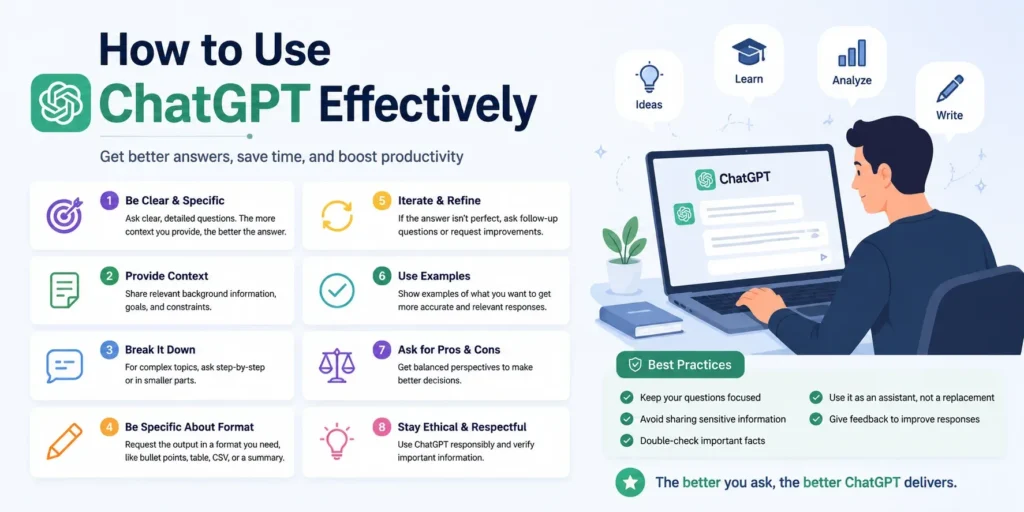
How to use chatgpt effectively ChatGPT effectively comes down to three things: writing prompts that give it a clear role, context, and format to work from; choosing the right feature for the task instead of defaulting to a plain chat every time; and treating every output as a draft that needs verification, not a finished answer. Most people use maybe 20% of what ChatGPT can actually do — the difference between a mediocre result and a genuinely useful one is almost always the quality of the input, not the tool itself.
Why Most People Get Mediocre Results
ChatGPT doesn’t look things up the way a search engine does. It generates responses based on patterns learned during training, plus real-time information when web search or research tools are enabled. That distinction matters more than most users realize: the quality of your input directly and predictably shapes the quality of the output. A vague prompt “write me a blog post about marketing” produces a generic, forgettable result. A specific prompt with context, audience, tone, and format produces something you can actually use with minimal editing.
This is why two people using the exact same tool can have wildly different experiences. One treats it like a search box and gets shallow, generic answers. The other treats it like a capable collaborator that needs clear direction, and gets consistently useful output. The gap between those two experiences is entirely a matter of technique not access to better features or a paid plan.
The Core Prompting Framework: Role, Context, Constraints, Format
The single highest-leverage skill for using ChatGPT effectively is structuring your prompts consistently. A reliable framework covers four elements:
- Role — Tell ChatGPT what perspective or expertise to adopt. “Act as a senior copywriter” or “act as a project manager reviewing this plan” immediately narrows the range of responses toward something more useful than a generic answer.
- Context — Give it the background it needs: who the audience is, what the goal is, and any relevant details about the situation. Without context, ChatGPT has to guess, and guesses default to generic.
- Constraints — Specify what you don’t want as much as what you do. Length limits, tone requirements, things to avoid, or a required structure all sharpen the output.
- Format — State exactly how you want the response delivered: a table, a numbered list, a short paragraph, an email, code with comments. This alone eliminates a huge share of follow-up editing.
For example, instead of “help me write an email about a deadline,” a structured version looks like: “Act as a project coordinator. Write a professional but friendly email to a client explaining that a deadline needs to move by one week due to a vendor delay. Keep it under 120 words, avoid sounding apologetic or defensive, and end with a clear next step.” The second version produces something close to final draft quality on the first try.
ChatGPT Isn’t a One-Step Tool — Treat It as a Conversation
One of the most underused habits is iteration. ChatGPT works best as an interactive system, not a single-shot answer machine. After the first response, you can ask it to shorten something, adjust the tone, add more detail in one section, or approach the problem from a different angle entirely. Each follow-up narrows the gap between what you got and what you actually needed.
Treating the first response as a draft to refine — rather than a final answer to accept or reject — is one of the simplest ways to dramatically improve output quality without learning anything new about prompting technique.
Choosing the Right Feature for the Task
By 2026, ChatGPT is built around a stack of features well beyond the basic chat window, and knowing which one fits your task matters as much as prompt quality. Here’s a practical breakdown:
- Standard chat — Best for quick questions, drafting short content, brainstorming, and one-off tasks that don’t need ongoing context.
- Projects — Designed as a workspace that keeps related chats, files, and instructions together. Ideal for ongoing work like a long-term writing project, a recurring analysis task, or anything you’ll return to repeatedly and don’t want to re-explain each time.
- Canvas — Built specifically for writing and coding work that requires editing and revision in place, rather than regenerating an entire response from scratch every time you want a change.
- Memory — Lets ChatGPT retain relevant details about your preferences and context across conversations, reducing the need to repeat background information every session.
- Deep Research — Suited for complex questions that require synthesizing information from multiple sources into a documented, structured report, rather than a quick conversational answer.
- Agent Mode — Built for multi-step tasks that involve taking actions, not just generating text, such as navigating a website to complete a form-based task.
- Voice Mode, file upload, and image input — Useful when the fastest or most natural way to give ChatGPT information isn’t typing — for example, uploading a spreadsheet for analysis or a document for summarization.
- Custom GPTs — Purpose-built versions of ChatGPT configured with specific instructions, useful for repeatable, specialized workflows your team uses often.
The mistake most users make isn’t lacking access to these features — it’s defaulting to a plain chat for everything, including tasks that would be dramatically faster or better handled by Projects, Canvas, or Deep Research.
Model and Effort Selection Matters More Than People Think
Modern ChatGPT plans typically let you choose how much reasoning effort a task gets, rather than just picking a model by name. Lighter, faster responses are appropriate for quick drafting and simple Q&A, while higher-effort settings are better suited to multi-step reasoning, complex analysis, or tasks where accuracy matters more than speed. Matching the effort level to the actual difficulty of the task is a simple habit that noticeably improves both speed and quality — using a high-effort setting for a simple question wastes time, while using a fast, low-effort setting for a complex analytical task risks a shallower answer than the task deserves.
Personalizing ChatGPT to Your Workflow
Custom Instructions let you tell ChatGPT how you generally want responses formatted — tone, level of detail, preferred structures — so you’re not repeating the same preferences in every single conversation. Combined with Memory, which retains relevant context across sessions, this personalization layer meaningfully reduces the setup friction of getting a useful answer, especially for people using ChatGPT daily for similar categories of work.
It’s worth being deliberate here rather than accepting default behavior: a few minutes spent setting clear custom instructions once can save meaningfully more time across dozens of future conversations than optimizing any single prompt.
Verification Is Not Optional
Even with strong prompting and the right features, ChatGPT can still generate confident-sounding but incorrect information — a behavior commonly called hallucination. This is true even with the most capable available models, and it applies most often to specific facts: statistics, quotes, dates, citations, and niche technical claims.
The practical rule: treat any specific factual claim ChatGPT generates as unverified until you’ve checked it against a reliable source. This is especially important for anything that will be published, shared publicly, or used in a professional or client-facing context. Using ChatGPT effectively doesn’t mean trusting it blindly — it means using it to accelerate the work while keeping human judgment and fact-checking firmly in the loop.
Building ChatGPT Into a Daily Workflow, Not Just a Search Box
The people who get the most consistent value from ChatGPT tend to treat it less like an occasional tool for one-off questions and more like a standing part of their workflow. That shift usually happens in a few recognizable stages.
At first, most people use ChatGPT reactively — a quick question here, a draft there, closing the tab as soon as the task is done. That’s a perfectly reasonable starting point, but it caps how much value the tool can provide, because every session starts from zero context.
The next stage is where the real gains show up: using Projects to keep ongoing work organized, relying on Custom Instructions so tone and format preferences don’t need repeating, and building small templates for recurring tasks — a weekly report structure, a standard email format, a content outline you reuse often. None of this requires advanced technical skill; it just requires treating ChatGPT as infrastructure you set up once rather than a tool you reconfigure every time.
The most advanced stage layers in Agent Mode and Deep Research for tasks that go beyond text generation — research synthesis that would otherwise take hours of manual searching, or multi-step tasks that involve taking actions rather than just producing a written answer. Not every workflow needs this level of integration, but knowing it exists means you’re not stuck doing manually what the tool could handle directly.
The practical takeaway: effectiveness compounds. A few minutes spent setting up Custom Instructions, organizing recurring work into Projects, and building reusable prompt templates pays off across every future session — far more than optimizing any single prompt in isolation.
Real-World Use Cases
- Writing and content creation — Drafting, editing, and iterating on blog posts, emails, and marketing copy significantly faster than starting from a blank page.
- Research and synthesis — Using Deep Research-style capabilities to pull together a structured overview of a complex topic before writing something original.
- Data and document analysis — Uploading spreadsheets, PDFs, or reports and asking for specific insights rather than manually digging through the data.
- Coding and debugging — Using Canvas-style in-place editing to iterate on code, explain errors, and refactor without regenerating entire files.
- Learning and explanation — Asking ChatGPT to adjust explanations to your existing knowledge level, effectively acting as an on-demand tutor for unfamiliar topics.
Common Mistakes to Avoid
- Writing vague, one-line prompts and expecting a highly specific, polished result.
- Using the same default chat mode for every task, regardless of whether Projects, Canvas, or Deep Research would fit better.
- Accepting the first response as final instead of iterating with follow-up refinements.
- Publishing or presenting specific facts, statistics, or quotes without independently verifying them.
- Ignoring Custom Instructions and Memory, and re-explaining the same preferences and context in every new conversation.
Best Practices for Getting Better Results
- Structure every non-trivial prompt around role, context, constraints, and format.
- Match the feature to the task: quick questions in standard chat, ongoing work in Projects, editing-heavy work in Canvas, complex synthesis in Deep Research.
- Set Custom Instructions once, and let Memory reduce repetitive context-setting over time.
- Treat every response as a first draft — ask follow-up questions and request revisions rather than starting over from scratch.
- Independently verify any specific fact, statistic, or quote before using it publicly or professionally.
Comparison Table: Which ChatGPT Feature Fits Your Task
| Task Type | Best Feature | Why |
| Quick question or short draft | Standard chat | Fast, no setup required |
| Ongoing project with recurring context | Projects | Keeps files, chats, and instructions together |
| Writing or code requiring in-place edits | Canvas | Built for revision without full regeneration |
| Complex, multi-source research question | Deep Research | Produces a structured, sourced report |
| Multi-step task involving real actions | Agent Mode | Executes steps, not just text generation |
| Repeatable specialized workflow | Custom GPTs | Purpose-built configuration for recurring tasks |
Key Takeaways
- Output quality is driven far more by prompt structure and feature choice than by which specific model version you’re using.
- A simple role–context–constraints–format framework covers most everyday prompting needs.
- Treat ChatGPT as an iterative collaborator, not a one-shot answer machine.
- Match features to tasks deliberately — most users underuse Projects, Canvas, and Deep Research.
- Verification of specific facts is a non-negotiable step, not an optional extra.
FAQs
What’s the fastest way to improve my ChatGPT results?
Add clear role, context, constraints, and format to your prompts instead of asking one-line, vague questions. This single change produces the biggest improvement for most users.
Should I always use the most powerful available setting?
No. Match the effort or reasoning level to the task simple questions don’t need maximum reasoning effort, while complex, multi-step analysis benefits from it.
Is it safe to trust ChatGPT’s factual claims?
Not without verification. ChatGPT can generate confident but incorrect statistics, quotes, or citations, so specific facts should always be checked against a reliable source before use.
What’s the difference between Projects and Canvas?
Projects is a workspace for keeping ongoing work, files, and context together across multiple conversations. Canvas is built specifically for in-place editing of writing or code within a single piece of work.
Do I need a paid plan to use ChatGPT effectively?
No — strong prompting technique and smart feature choices improve results regardless of plan tier, though paid tiers typically unlock higher-effort reasoning and additional feature access.
Conclusion
Using ChatGPT effectively isn’t about discovering a secret trick or waiting for a smarter model — it’s a matter of technique. Structuring prompts with clear role, context, constraints, and format; choosing the right feature for the task instead of defaulting to plain chat; treating responses as drafts to refine rather than final answers; and verifying specific facts before relying on them are habits anyone can build starting today. The tool itself rarely changes the outcome as much as how deliberately it’s used.