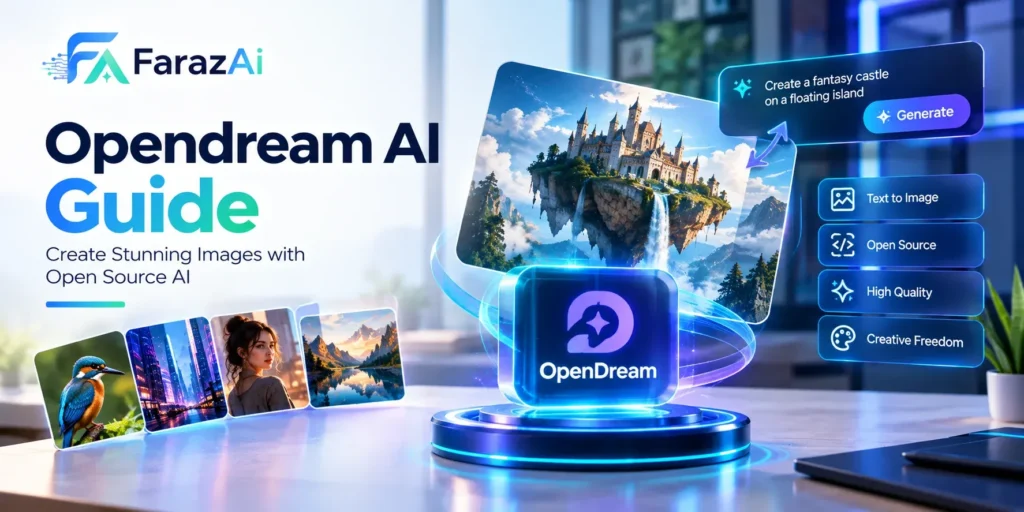
Opendream AI Guide: What It Is, How to Use It, and What to Check First
You type one sentence. Seconds later, a finished image appears. That is the promise of opendream ai, and it mostly delivers. But the official pages disagree with each other on prices, and several similar names in Google are completely different products.
This guide puts the facts in one place. You will learn what the tool is, how to sign in, how to write prompts that work, what the free plan really gives you, and where the rules get tricky. Everything below was checked against the official OpenDream pages on September 29, 2026. Outside sources are used only where the official pages say nothing.
Quick answer
The tool called opendream ai is a browser-based text-to-image generator built on Stable Diffusion technology. You sign in with Google or Discord, type a prompt, choose one of four models, and click “Let’s dream.”
The free plan gives you 24 credits a day. The pricing page lists a Core plan at $12 a month and a Pro plan at $24 a month. The terms say you own your images and can use them commercially, with limits that matter. We cover those limits below.
What OpenDream is, and what it is not
OpenDream is a website that turns written descriptions into pictures. It runs in the cloud, so you do not need a strong computer or any software. The official pricing page describes it as a Stable Diffusion tool that can also upscale images, create variations, and fix faces.
Think of it as a simple front door to a well-known open-source technology. It is not a photo editor like Photoshop. It is not a design tool like Canva. It makes new images from your words, and you can also upload an image to get variations of it.
How the images are made
The model starts with random noise. Then it cleans that noise up, step by step, until the picture matches your words. This is called diffusion. It explains two things you will notice quickly. Vague prompts give random-looking results. And the same prompt gives different images each time, because each run starts from a different noise pattern.
The four models
The official guide says OpenDream offers four models. It does not list their names in the pages I read. A third-party review names them as follows, and Google’s AI Overview also mentions the Photoreal and Anime models.
| Model | Best for |
| Dreamlike Photoreal 2.0 | Realistic portraits, landscapes, product-style shots |
| Dreamlike Anime 1.0 | Anime and manga-style characters |
| Stable Diffusion 2.1 | General creative work in many styles |
| Deliberate | Concept art, surreal or loose, experimental scenes |
Pick the model first. Then write the prompt for that model. A prompt built for photos will often look flat in an anime model.
Not every “dream” site is the same tool
Search for opendream ai and Google suggests other names: OurDream AI, Kaer AI, and SinCode AI. These are separate products. For example, OurDream AI’s own pages describe an AI companion app, not an art generator.
Two more warnings:
- The official address is opendream.ai. Another site, opendreamai.org, also ranks for the name. I could not confirm that it is connected to the official service, so start from opendream.ai and check the URL before you enter payment details.
- Pages that offer an “OpenDream APK” often sit on file-download sites that have no link to the company. Treat them with caution.
Login, app, and APK: what is real
People search for “login,” “app,” “download,” and “APK” a lot. Here is what can be verified.
Login. The official guide says you sign up with “Continue with Google” or “Continue with Discord.” Later you can pick a name and details, then save. There is no separate password step in the guide.
Web use. The official pages describe a website. It works in a normal browser, including on a phone.
Mobile app. One line in the official FAQ mentions opening “the mobile app” during login. I could not find an official store listing that confirms it. If you go looking, use only Google Play or the App Store, and check that the publisher matches the official site.
APK files. I would skip them. You do not need one to use the tool, and random APK files are a common way to spread unwanted software.
Two account rules save headaches. You cannot change your login email or username after signing up. And one email address can only have one account.
How to use opendream ai step by step
The official guide gives this flow. I have rewritten it in plain steps.
- Go to opendream.ai and click “Get Started.”
- Sign in with Google or Discord.
- Optional: choose a template. Templates come with settings already filled in, so you only type the subject.
- Optional: adjust the style. A style is a saved set of prompt and negative prompt words that you can edit.
- Type your prompt in the prompt box.
- Choose the model, image count, and aspect ratio.
- Decide whether the image is public or private.
- Click “Let’s dream.”
On the free plan you can make only one image per creation. The free plan also blocks prompts for adult content. Paid users can make more images at once, up to 32.
How to write prompts that work
Most weak results come from weak prompts. The official guide gives a few rules worth following.
Put the important words first
Words at the start of a prompt count more than words at the end. Keep the whole prompt under about 75 words. The guide suggests this order: art medium, objects, attributes, expression, lighting, details, camera shot, and style references.
Compare these two prompts:
- Weak: “a knight”
- Better: “oil painting of a tired knight resting under a pine tree, soft morning light, close-up, muted colors”
The second one tells the model the medium, subject, mood, light, and framing. That leaves much less to chance.
Use negative prompts
A negative prompt lists what you do not want to see. Common examples include blurry, extra fingers, bad anatomy, watermark, cropped, and low quality. Use a short list. A giant copied list can make results worse instead of better.
Choose the right shape
Odd image shapes can cause strange duplicates, like two heads or extra arms. The guide shares sizes that tend to work well:
| Use | Suggested size |
| Portrait | 576 x 768 |
| Logo or icon | 512 x 512 |
| Landscape | 768 x 576 |
The guide also advises keeping at least one side at 512 pixels. If you see duplicates, add terms like “two faces” or “multiple people” to the negative prompt.
Emphasis and weights
In tools that use Stable Diffusion prompts, parentheses raise the focus on a word. For example, (word:1.5) boosts it by 1.5 times. On OpenDream, the guide says styles use a percentage slider instead, so you may not need to type weights yourself.
Settings you can leave alone
The guide recommends keeping guidance scale, steps, and sampler at their defaults while you learn.
| Setting | What it does | Guide’s advice |
| Guidance scale (1 to 50) | How closely the image follows your prompt | 7 is a good balance |
| Steps | How many cleanup passes the model runs | 25 is recommended |
| Sampler | The method used to build the image | Try LMS for steady results; DDIM or Euler A for fast tests |
A higher guidance number follows your words more strictly, but with less creative freedom. More steps can add quality, but they also take longer, and the gain fades after a point. Change one setting at a time so you can see what caused the difference.
Build a prompt library
When a prompt works, save it. A simple notes file is enough. Over time you will have reliable starting points for logos, portraits, and landscapes, and you will stop wasting credits on guesswork.
Free plan and pricing
OpenDream sells credits. Each image costs credits, and the pricing page gives one example: one image uses 2 credits, and four images use 8.
| Plan | Price | Credits | Listed extras |
| Free | $0 | 24 per day | Commercial use listed; low priority; one generation at a time; queue of up to 5 images; limited settings |
| Core | $12 per month | 3,000 per month | Commercial use listed |
| Pro | $24 per month | 12,000 per month | Higher credit volume |
Annual billing has a 20% discount. There is no free trial, but the free plan works as one.
What the numbers mean in practice
At 2 credits per image, the free plan covers about 12 single images a day. That is enough to learn, and not much more. Core at 3,000 credits works out to roughly 1,500 images a month at the same rate. Pro is about four times that.
Some reviewers say the free plan also locks certain controls, such as negative prompts and seed control, and limits which models you can pick. The official page only says “limited settings,” so check inside your account before you plan around either claim.
The prices do not match everywhere
This is the part most guides skip. Different official pages say different things.
| Item | Pricing page | Other official page |
| Free credits | 24 per day | Terms mention 20 free credits after you register |
| Paid prices | $12 and $24 per month | FAQ lists $9.90, $19.90, and $189.90 per year |
| Refund limit | Under 2% of credits used | Terms say up to 5% |
The pricing page is the most likely to be current, since it holds the live checkout links. But screenshot the price and the refund rule before you pay.
Cancelling and renewals
Plans renew automatically each month. If you cancel, you keep your unused credits. After they run out, the account drops to the free plan. You cannot go past your credit limit. Once the credits are used up, the account moves down to the free plan.
Commercial use and copyright
This is where careful users should slow down.
The terms say you own the artwork you create and can use it for personal or commercial purposes. Google’s AI Overview describes the same idea, with the note that it depends on platform policies. Both the free and paid plans list commercial use on the pricing page.
But the same terms add limits:
- OpenDream does not promise that you can get a trademark or copyright on an AI image.
- It does not promise your image avoids other people’s rights.
- If you use an image commercially, you agree to cover OpenDream for losses from any infringement claim.
- If your account is banned for breaking the rules, you lose access to your images and get no refund.
The law on AI art is still changing, and it differs by country. For anything important, such as a logo, a product label, or a book cover, talk to a qualified lawyer. Avoid prompts that copy a living artist’s style or a brand’s characters. That is where most trouble starts.
Content rules
The terms ban abusive, hateful, violent, adult, and rights-violating content. Moderators can delete content and suspend accounts. Some blogs describe the tool as “unfiltered.” That does not match the official terms or the guide, which says the free plan blocks adult prompts. Trust the terms.
Age and privacy
Users under 16 need a parent or guardian present. The FAQ says images are saved to your profile, so you can review them later. You can also set images to public or private. Choose private for client work or anything sensitive. To delete your account, you must contact support.
Limits and honest trade-offs
The tool is friendly, but it has clear edges.
| It is a good fit for | It is a weaker fit for |
| Learning how prompts work | Scenes with several characters or busy details |
| Anime and stylized art | Text inside images |
| Quick concept sketches | Polished marketing assets |
| Free experiments | Heavy daily use on the free plan |
| Blog and social visuals with review | Automated workflows |
A few notes on that table. Reviewers describe the models as older Stable Diffusion-based options. One review says the output quality trails newer tools such as ChatGPT Image and Gemini. Another says Midjourney and DALL-E 3 handle complex scenes better. These are opinions, not lab tests, but they match the general pattern that Stable Diffusion tools work best with a single clear subject.
On API access, sources disagree. One directory lists an API. Another review says there is none. The official pages I read do not mention one. If you need automation, ask support before you build anything.
Common mistakes to avoid
- Writing a vague prompt. “A nice forest” gives the model too much freedom.
- Changing everything at once. Change one thing per run.
- Ignoring the model. The same words look very different in Photoreal and Anime.
- Using odd shapes. Very tall or wide canvases cause duplicated body parts.
- Chasing perfect on the first try. Treat the first image as a draft.
- Skipping the fine print. Read the commercial terms before you sell anything.
- Trusting look-alike sites. Use opendream.ai and check the address.
A simple starter routine
If you are brand new, try this over your first week.
- Day one: pick the Photoreal model and run three simple prompts.
- Day two: repeat the same prompts in the Anime model and compare.
- Day three: add a negative prompt and see what changes.
- Day four: test three aspect ratios with one prompt.
- Day five: save your best prompt into a personal library.
By the end you will know which model suits your style, and you will not have spent any money.
Conclusion
Opendream ai is a low-barrier way to learn AI art. It is free to start, it works in a browser, and it gives you clear controls without a steep learning curve. It is not the newest or most powerful tool, and its official pages contradict each other on price and refunds.
Start on the free plan. Confirm the numbers at checkout. Read the commercial terms before you sell or publish anything. And stay on opendream.ai, not on look-alike sites.
FAQ
Is opendream ai free to use?
Yes, there is a free plan. The pricing page lists 24 credits per day. Free users get limited settings, low priority, and one image per creation. There is no free trial, because the free plan serves that purpose.
How much does opendream ai cost?
The pricing page lists Core at $12 per month with 3,000 credits and Pro at $24 per month with 12,000 credits. Annual billing is 20% cheaper. An older FAQ page lists different prices, so confirm at checkout.
Is there an opendream ai app or APK?
The service is built for web browsers. The official FAQ mentions a mobile app once, but I could not confirm a store listing. You do not need an APK, and third-party APK sites are a risk.
How do I log in?
Go to opendream.ai and choose “Continue with Google” or “Continue with Discord.” Use the same method every time you return. Login emails cannot be changed later.
Can I use OpenDream images commercially?
The terms say yes, and that you own the artwork. They also say they cannot guarantee copyright or trademark protection and that you take responsibility for infringement. Get legal advice for high-stakes uses.
Which model should I use?
Use Dreamlike Photoreal 2.0 for realistic images, Dreamlike Anime 1.0 for anime, Stable Diffusion 2.1 for general work, and Deliberate for experimental art. Model names come from a third-party review, not the official guide.
How many images can I make at once?
Paid users can make up to 32 images in one go. Free users can make one per creation.
Why do my results look different each time?
Every image starts from a random noise pattern. Small prompt changes also change the outcome. More specific prompts give more consistent results.
Is OurDream AI the same as opendream ai?
No. OurDream AI is a different product, and its own pages describe an AI companion app. Check the domain before you sign up anywhere.